


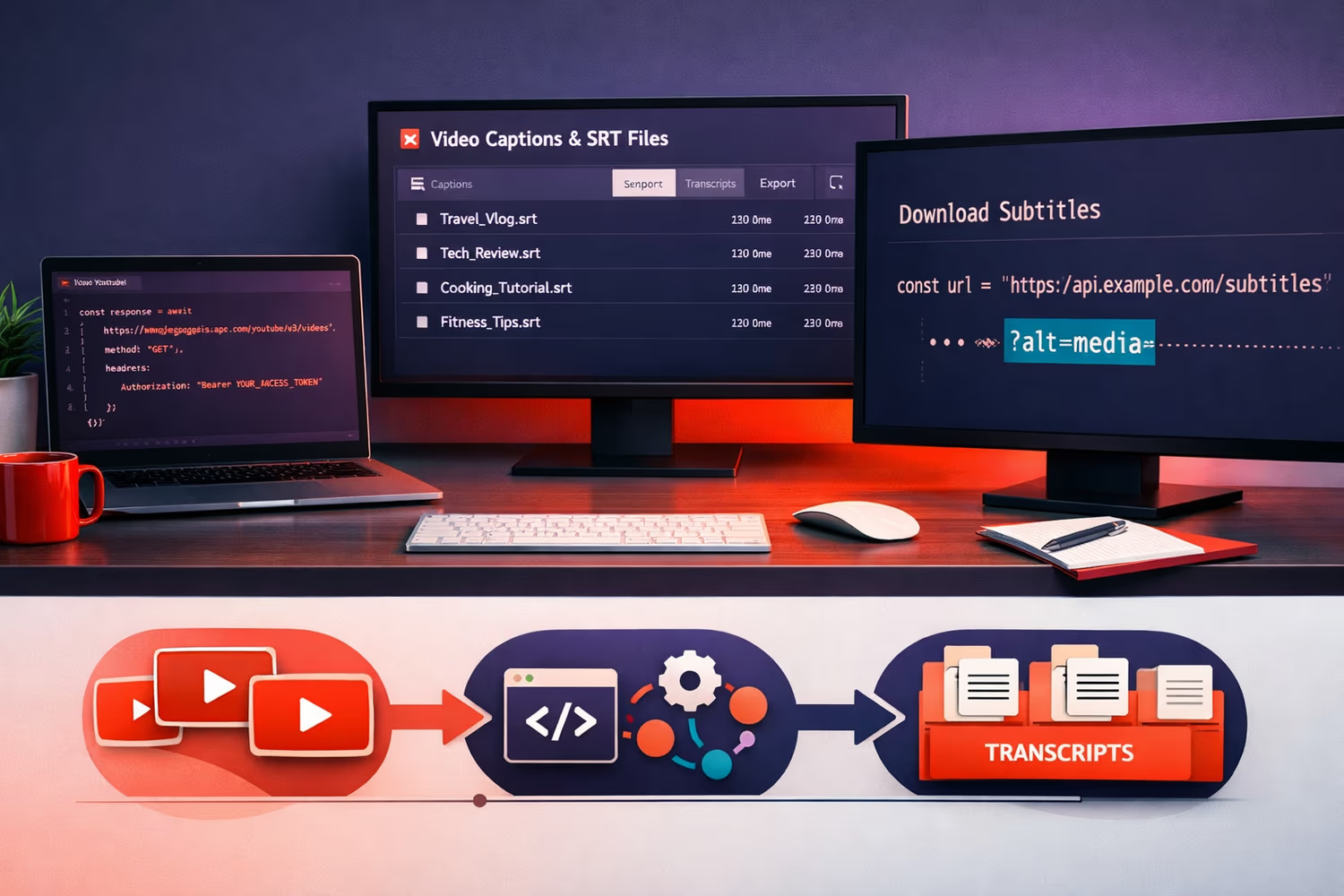
How to Get SRT Files from Your YouTube Channel Using the API (There's a Hidden Trick)
When you've got more than a hundred videos on a channel, something interesting happens. You're writing an article, you half-remember making a point in a retrospective six months ago, and you think, I'd really like to link to that moment. Not the video. That specific moment.
Cataloguing your back catalogue manually is a fool's errand. So the solution I'm building is a searchable library of SRT transcript files, with timestamps, pulled directly from the channel. When I'm writing an article, a LinkedIn post, or anything else, I can search for a topic and deep-link directly to the relevant point in the relevant video. No scrolling. No guessing.
This is part of a broader content intelligence system I'm building as part of the HITL experiment. If you want that context, it's covered elsewhere. This article is the practical how-to for getting the SRT files out of YouTube in the first place, because it is not as straightforward as it should be.
The YouTube API Documentation Will Mislead You
The official YouTube Data API documentation for caption downloads shows a simple GET request and states it returns a binary file. It looks straightforward. It is not.
What the documentation does not tell you is that if you follow it exactly, you will get an error. Every time. I spent far too long on this before I found the fix, and I found it through Perplexity, not a Google search. Worth remembering that.
The Three-Module Setup in Make.com
The workflow is three custom API calls inMake.com using their YouTube module, so this would be replicable in n8n or as a custom API call if you want to go down that route. Here is what each one does.
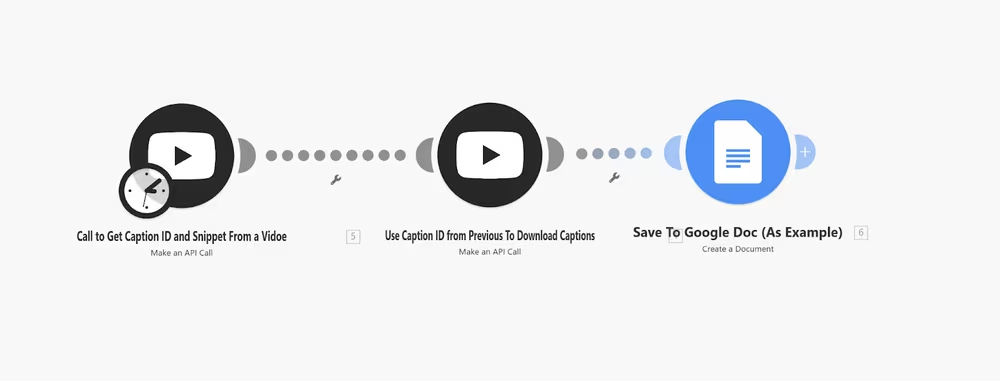
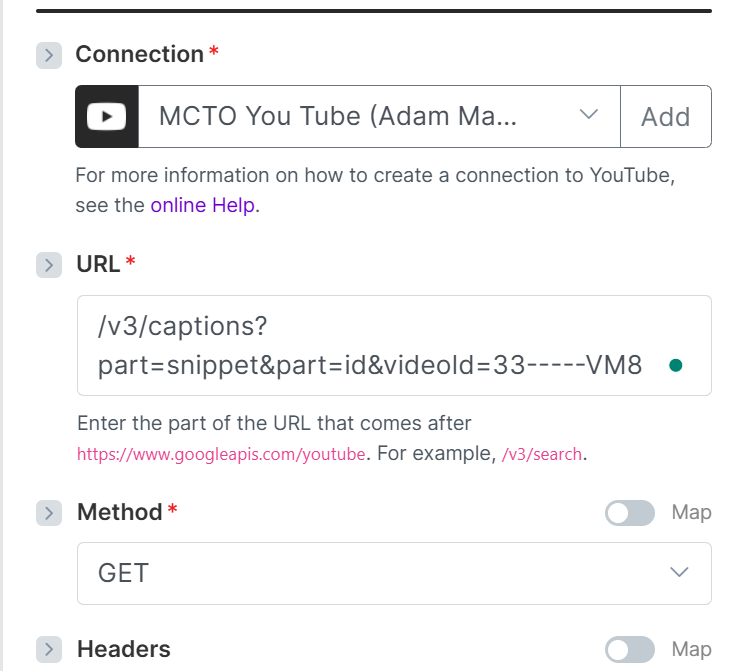
Module 1 — Get the Caption List and Snippet
The first module calls the YouTube API to retrieve the list of captions for a given video. Critically, you need to request the snippet, not just the ID.
The snippet gives you metadata about each caption track, including the language. If your entire channel is in one language, you might think you can skip this, but if you have ever uploaded a translation file or YouTube has auto-generated captions in multiple languages, you will end up downloading the wrong one. The snippet lets you filter for and pass only the track in your main language, ignoring the rest.
Module 2 — Download the SRT File
This is where the trick lives.
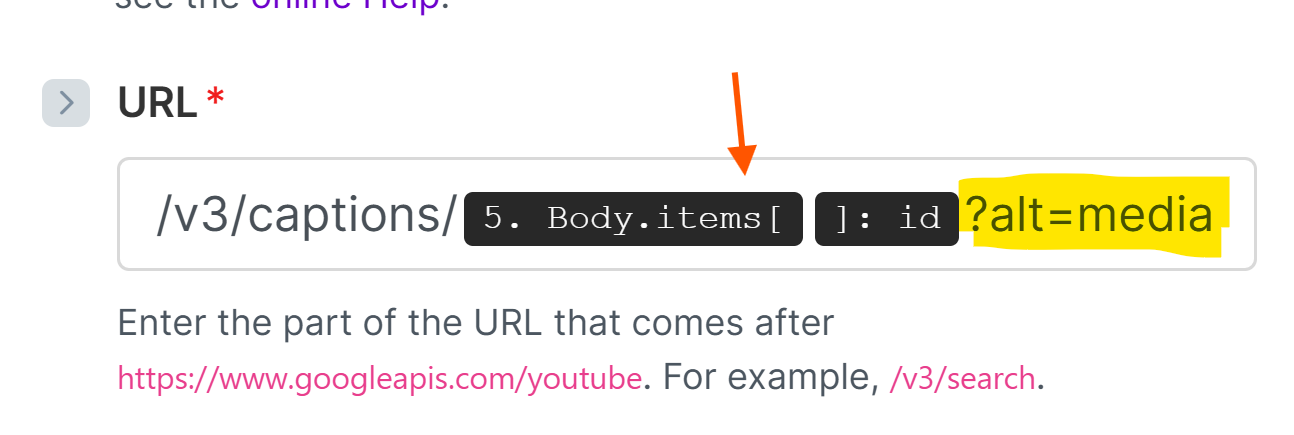
The endpoint is the standard captions download URL from the documentation. You pass the caption ID from Module 1. Then you add one query parameter that is not in the documentation:
?alt=media
That is it. That single parameter is what makes this work. Take it off, and you get an error. Leave it on, and you get your SRT file back.
What ?alt=media does is force the API to return the binary content, the actual file, rather than attempting to return a JSON wrapper around it. There is a GitHub repository that explains the underlying behaviour, but the short version is: without it, the API tries to return JSON, which fails, and you get nothing. With it, you get your SRT file.
Google's own documentation makes no mention of this. Perplexity found it. Make of that what you will.
Module 3 — Push the Output Somewhere
In the accompanying video, I pushed the result into a Google Doc to demonstrate it working. In practice, you map the body of the response, which is your SRT file content, into wherever you are storing it. In my case, that feeds into a searchable index.
You will see numbers and formatting in the output when you first look at it; do not panic. That is just the SRT format. It is exactly what you want.
Quick Recap
Three Steps: First, make a call to get the caption IDs with snippet, second, download using the caption ID plus ?alt=media and third, push the result to your destination. The snippet matters if you have multiple language tracks, so you can filter by language ISO code.
Stupidly simple once you know it. The problem is finding it in the first place, which is why I'm sharing it.
A Note on the Alternative
The other route, which is what prompted me to persevere to figure this out, seemed way too convoluted, something like an Apify actor. That works, but over a large back catalogue, it gets expensive quickly. Doing it directly via the API is free within your quota allowance. Given that I have over a hundred videos and this will run regularly, the API route was the only sensible option.